How to Import a Scrivener Project into NovelCanon
Import your Scrivener project into NovelCanon in minutes — no compiling to Word first. See exactly what carries over, chapter by chapter, scene by scene.
To import a Scrivener project into NovelCanon, open your dashboard, click Import manuscript, and select your
.scrivproject — zipped first if you're on Windows, since Scrivener's project package is a real folder there. NovelCanon reads the binder directly, with no compiling to Word or plain text first, turning each folder into a chapter and each document into a scene in under a minute.
The usual migration path out of Scrivener is to compile your project, pick an export format and hope the formatting survives the round trip. NovelCanon skips that. It opens the .scriv package itself — the same binder, folders, and RTF documents Scrivener works with — so what you get in the preview is your actual manuscript structure, not a re-parsed Word document. Here's exactly what that looks like and what to expect from it.
Key takeaways
- No compile step. NovelCanon reads your
.scrivproject's binder and RTF documents directly — you never export to Word or plain text first. - Zip it on Windows, not on Mac. Scrivener's
.scrivproject is a single package on Mac and a real folder on Windows; NovelCanon accepts both a native.scrivfile and a.zipof the folder. - Folders become chapters, documents become scenes — in the same order they sit in your binder.
- You see a full preview before anything is created — chapter titles, scene counts, word counts — so nothing imports without your approval.
- Only the Draft (Manuscript) folder comes in. Research documents, the trash, and Scrivener-only metadata like labels, status, and synopsis cards don't carry over.
- Paragraph and scene breaks survive; character-level formatting doesn't. Bold and italics import as plain text.
What do you need before you import a Scrivener project?
Just your .scriv project — nothing needs to be compiled, exported, or converted first. NovelCanon's importer opens the Scrivener package the same way Scrivener itself does: it reads the .scrivx manifest to find your binder structure, then pulls the RTF content out of each document.
The one thing that differs by platform is how you hand that project to a browser. On a Mac, Scrivener's .scriv project is a package — Finder shows it as a single file, and you can select it directly in the upload dialog. On Windows, a .scriv project is a real folder, and a browser's file picker can only upload files, not folders. So on Windows, right-click the .scriv folder, choose Send to → Compressed (zipped) folder, and upload the resulting .zip instead — NovelCanon treats it identically to a native .scriv file. Either way, keep the file under 10 MB; a typical single-novel manuscript is well inside that.
How do you import a Scrivener project into NovelCanon?
Open your NovelCanon dashboard, click Import manuscript, select your file, review the parsed preview, and confirm — five steps, no intermediate export.
- From the Projects dashboard, click Import manuscript.
- Drag your
.scrivfile (or its.zip) into the drop zone, or click Browse files to select it. - NovelCanon parses the binder and shows a preview: detected title, chapter list, scene counts, and a total word count.
- Click Continue, confirm (or edit) the project title, add a genre if you like, and click Import.
- Click Open project to land straight in your new project, chapters and scenes already in place.
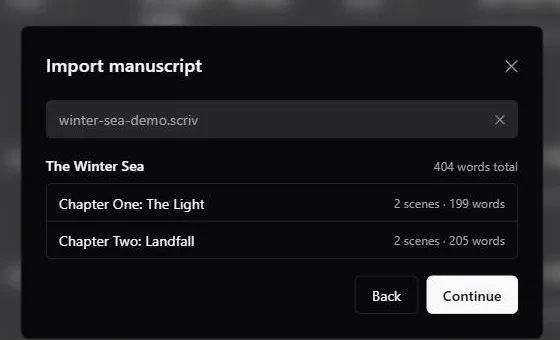
The preview step after uploading a .scriv file directly — no compiling, no re-formatting, just the binder as Scrivener already had it structured.
Nothing is written to your account until you click Import on that final step, so it's safe to upload a file just to see how it parses before committing to it.
Do you have to compile your Scrivener project before importing?
No — the importer reads the .scriv package itself. The usual migration path for a Scrivener project is to compile it inside Scrivener first, choosing an export format like Word or plain text, and then import that file into wherever you're headed. NovelCanon's importer reads the .scriv package itself, so that compile step simply isn't part of the process — you're not translating your manuscript through an intermediate format at all, you're handing over the same binder Scrivener already had.
That matters more than it sounds like it should. A compile step is also where formatting quietly goes wrong: a compile format that doesn't match your project's setup can flatten headings, mangle scene separators, or drop front matter, and you often don't find out until you're already looking at the imported result somewhere else. Reading the binder directly removes that failure mode — the chapter and scene structure you see in the NovelCanon preview is read straight from Scrivener's own binder order, not reconstructed by guessing at headings in a Word document.
What happens to your chapters and scenes during import?
Your Draft folder's structure maps onto NovelCanon almost exactly: top-level folders become chapters, and the documents inside each one become scenes, in binder order. Everything else in the project — Research, the trash, any folder outside the Draft — is left out, because none of it is part of the manuscript itself.
| Scrivener concept | Becomes in NovelCanon |
|---|---|
| The Draft folder (labelled "Manuscript" in Scrivener 3) | Your project's manuscript |
| A top-level folder inside the Draft | A chapter |
| A document inside a chapter folder | A scene |
| A blank line inside a document | A scene break within that document |
| Research, Trash, and anything outside the Draft | Not imported |
| Labels, status, keywords, synopsis cards | Not imported |
That last row is worth being direct about: NovelCanon's story bible builds its character, location, and world-rule records by reading your prose, not by importing Scrivener's metadata fields. If you kept character notes in Scrivener's synopsis cards or a custom metadata field, that information doesn't transfer — you'd re-enter it in NovelCanon's story bible once, and from then on it stays in step with your prose automatically.
Will formatting and scene breaks survive the import?
Structure survives; character-level styling doesn't. A blank line between two passages inside a Scrivener document is preserved as a scene break, and paragraph breaks come through cleanly — those are structural, and NovelCanon's importer is built to detect them. What doesn't come through is inline formatting: a word you'd bolded or italicised in Scrivener imports as plain text, because the importer converts each document's RTF down to prose rather than carrying rich-text styling across.
For most manuscripts this is a non-issue — the formatting that matters for a first draft is paragraph and scene structure, and that's exactly what's preserved. If your project leans on italics for internal monologue or emphasis in specific passages, plan on a pass to re-apply it after import; NovelCanon's editor supports the same inline formatting Scrivener does, it just doesn't arrive pre-applied.
What if your manuscript is bigger than your plan allows?
You find out at the preview step, before anything is created — never mid-import. NovelCanon's free plan holds one project of up to three chapters. If your Scrivener manuscript has more chapters than that, the preview tells you exactly how many you're over by and gives you two honest options: import the first three chapters now and pick up the rest after upgrading, or upgrade first (the Manuscript plan, from $5 a month billed annually, lifts the chapter limit) and bring the whole book in at once. Either way, the choice is yours to make with the numbers in front of you — nothing gets silently truncated.
Is your original Scrivener project safe after you import it?
Yes — importing only reads your .scriv file. Nothing is written back to it, moved, or renamed. Your project stays exactly where it was on disk, in exactly the state Scrivener left it. That makes the import a genuinely safe thing to try: open the file, watch it parse, decide afterward whether you want to keep writing in NovelCanon, keep both projects running in parallel for a while, or go back to Scrivener entirely. There's no migration wizard forcing a one-way door.
Once you're in, the manuscript you imported is the same one the Consistency Engine reads from — it extracts characters, locations, and story facts from each scene as you write and save it, building the story bible Scrivener never kept for you automatically. On the Manuscript and Pro plans the import goes further: it drafts characters, places, world rules, plot threads and a timeline from the whole manuscript as suggestions you review, and Scan for new entries picks up whatever you write after that. If you're weighing NovelCanon against a hand-kept codex more broadly, NovelCanon vs Novelcrafter covers that comparison directly. For now, though, importing is the whole job: point the wizard at your .scriv file, and your manuscript is ready to write in.
Frequently asked questions
Can NovelCanon import a Scrivener project directly, or do I need to compile it first?
Directly — NovelCanon reads your .scriv project's binder and RTF documents without any compile step. Select the file (or a zipped copy of it) in the import wizard and it parses your chapters and scenes on the spot. NovelCanon skips the compile step entirely.
Why do I need to zip my Scrivener project on Windows but not on Mac?
Scrivener stores a project as a .scriv package — a single bundled file on Mac, but a real folder on Windows. A browser file picker can only upload files, not folders, so Windows writers zip the .scriv folder first. NovelCanon accepts the resulting .zip exactly like a native .scriv file.
What becomes a chapter and what becomes a scene when you import from Scrivener?
Each top-level folder inside your Draft (Scrivener 3 labels it "Manuscript") becomes a chapter, and each document inside that folder becomes a scene, in the same binder order. A folder with no documents in it imports as an empty chapter you can fill in later.
Does formatting like bold, italics, or scene breaks survive the Scrivener import?
Scene and paragraph breaks survive — a blank line between passages in your Scrivener document stays a scene break in NovelCanon. Character-level formatting doesn't: the importer reads your RTF down to plain prose, so a bolded or italicised phrase comes in as plain text.
What happens if my Scrivener manuscript has more chapters than my NovelCanon plan allows?
The preview step tells you before anything is created. NovelCanon's free plan holds up to three chapters per project; a longer manuscript gives you the choice to import just the first three now or upgrade (the Manuscript plan, from $5 a month billed annually, lifts the chapter limit) and bring in the whole book at once.
Is my original Scrivener project changed or deleted when I import it?
No — the import only reads your .scriv file; nothing is written back to it, moved, or deleted. Your original project stays exactly as it was on disk, so you can keep working in Scrivener, re-import later, or treat NovelCanon as a parallel copy while you decide.
Written by
Munib Ali Laghari
Founder, NovelCanon
Building the writing studio he wished he had for keeping a long story straight — one where the AI never loses the thread.