All help articles
Write with AI
Continue a scene, improve a passage, write dialogue, brainstorm and chat about your book with the AI, and keep or undo what it writes.
Last updated
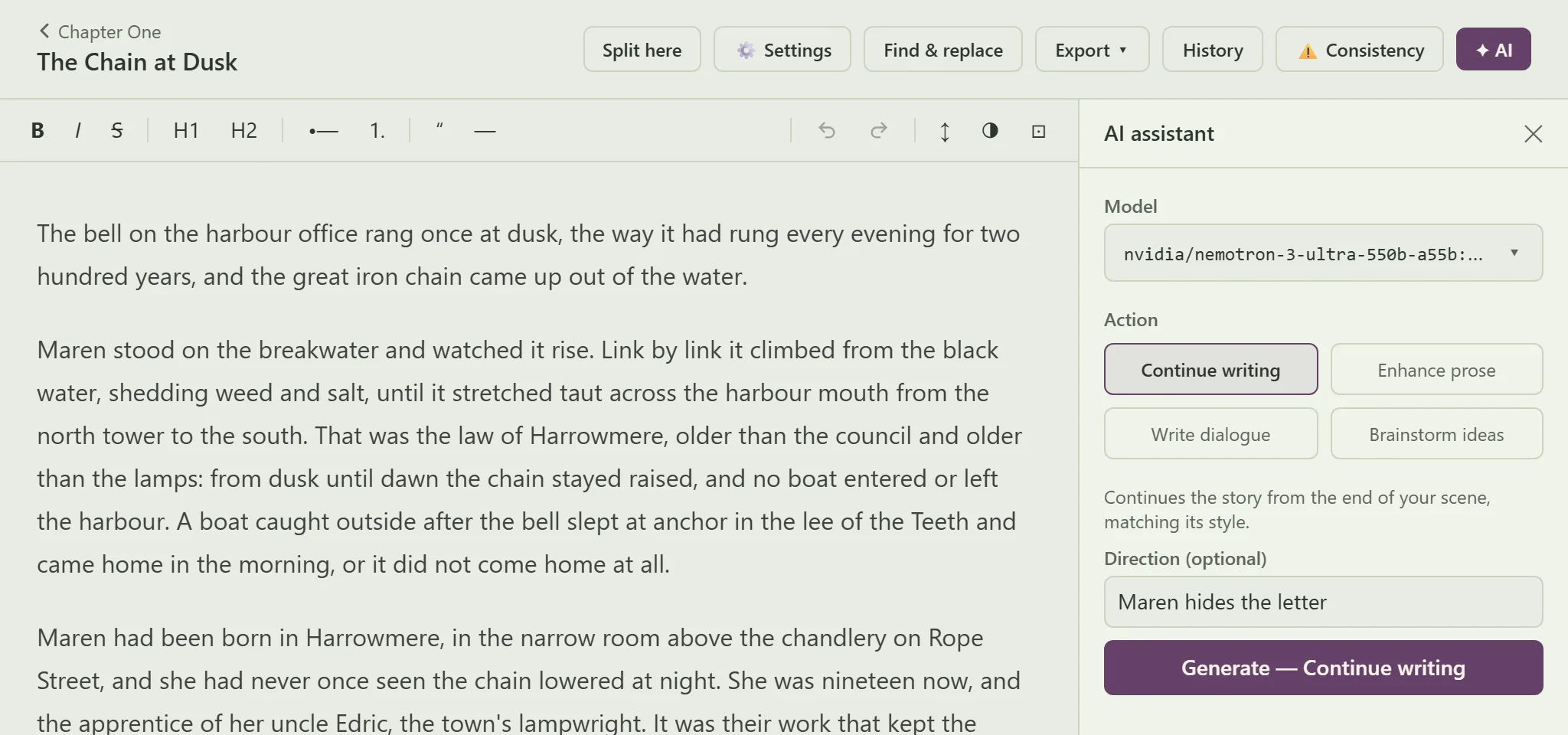
To write with AI, open a scene and click ✦ AI above it. The AI assistant panel opens beside your text: pick an action (Continue writing, Enhance prose, Write dialogue or Brainstorm ideas), add an optional note, and click Generate. What the AI writes is highlighted in your scene until you click Accept or Discard. To ask questions about your book instead, open ✦ AI Chat in the project's sidebar.
The AI runs on your own AI key. If you haven't connected one yet, see Connect an AI key.
What can the AI do in a scene?
- Continue writing: writes what happens next, from the end of your scene, in its style.
- Enhance prose: rewrites a passage you've selected.
- Write dialogue: writes a conversation between characters you choose, at your cursor.
- Brainstorm ideas: suggests numbered ideas for where the story could go. They stay in the panel until you insert one.
Every action knows your story: the AI is sent your characters, world rules, a summary of earlier scenes, open plot threads and timeline events, and the scene itself. The more of your Story Bible you fill in, the better it follows your book. See How does the AI use my Story Bible?
How do I continue a scene?
- Open the scene and click ✦ AI.
- Choose Continue writing.
- To steer it, type what should happen next under Direction (optional), for example "she finds the letter but doesn't open it". Leave it empty and the AI chooses where to take the scene.
- Click Generate. The new text is added at the end of the scene.
How do I improve a passage?
- Select the text in your scene.
- In the AI panel, choose Enhance prose.
- To say what you want, add an Instruction (optional), such as "add sensory detail" or "tighten pacing".
- Click Generate. The rewrite replaces your selection.
Enhance edits lightly, to keep your voice. If the result is almost the same as what you wrote, the panel says Few changes needed; for a bigger rewrite, add an instruction such as "more tension" and try again.
If you edit the selected passage while the AI is working, your newer text is left alone and the rewrite stays in the panel for you to copy if you want it.
How do I write dialogue or brainstorm?
To write dialogue:
- Click in your scene where the conversation should go.
- In the AI panel, choose Write dialogue.
- Click the characters who should speak. They come from your Characters page.
- Describe the moment under Situation (optional).
- Click Generate. The dialogue is added where your cursor is.
To brainstorm:
- In the AI panel, choose Brainstorm ideas.
- Add a Topic (optional), such as "ways Elena could betray Marcus".
- Click Generate. The ideas appear in the panel, not in your scene.
- To use one, click in your scene where it should go, then click Insert into scene under the idea. Clear removes the list.
How do Accept and Discard work?
AI text added to your scene is highlighted until you decide:
- Accept keeps it as your own text.
- Discard removes it and puts back exactly what was there before, including the original wording and formatting of a passage you enhanced.
- ↺ discards it so you can generate again.
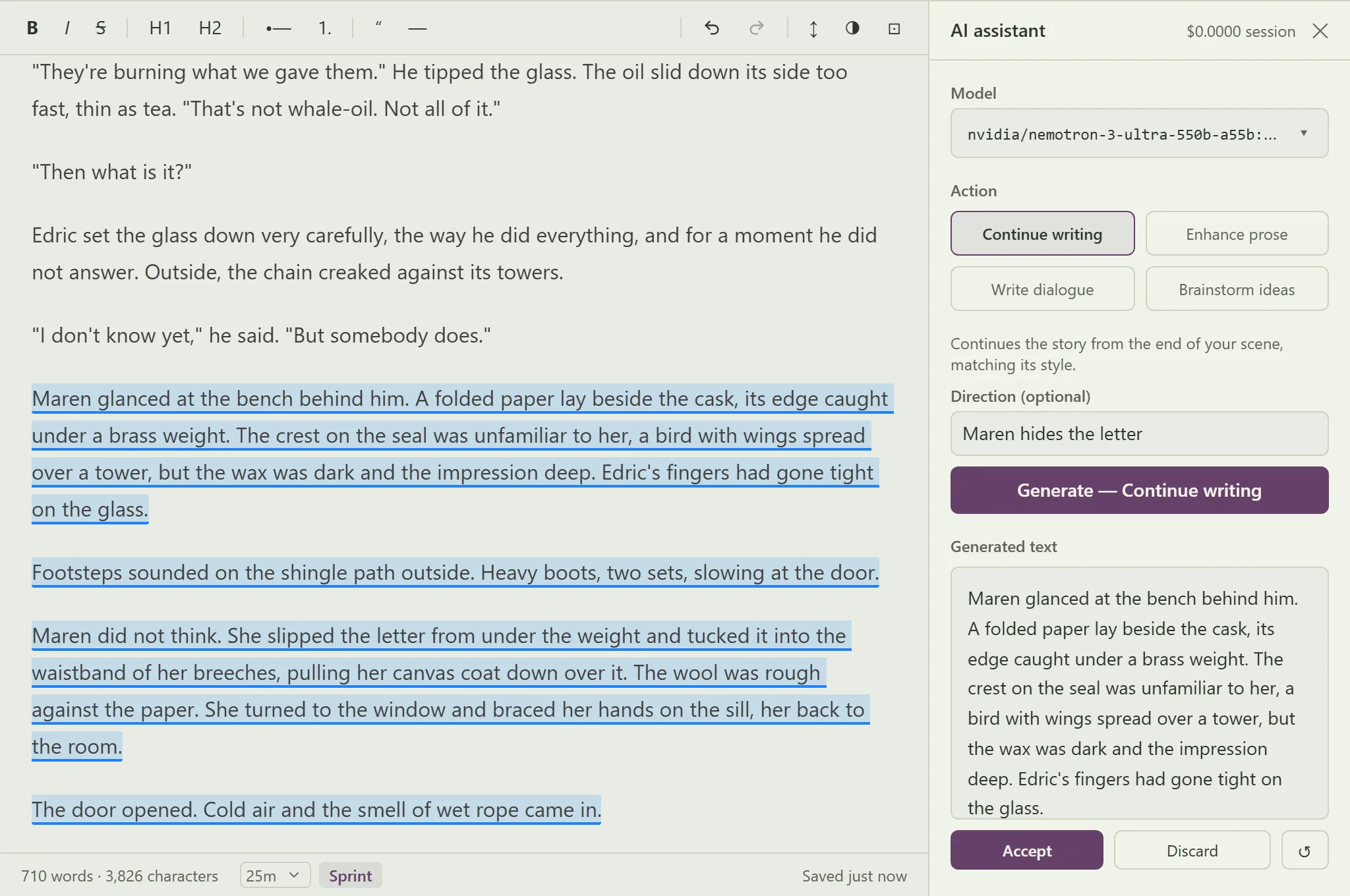
You can keep typing while the AI writes: the text still lands where you aimed it. Stop generating cancels a long generation part way.
How do I ask the AI about my story?
- Open ✦ AI Chat in the project's sidebar and click + New chat.
- Type your question, for example what a character knows, whether a plot point holds up, or what happened in chapter 3.
- Click Send, or press Ctrl+Enter.
Chat sees your whole book: your main characters, every scene's summary, open plot threads and the timeline. Ask about a chapter or scene by number ("chapter 3, scene 2") or by its title, and the AI reads that scene's text.
Type @ to mention a character or a scene by name: the AI is sent that character's full profile or that scene's text. Under each answer, Copy copies it.
To save a character the AI described:
- Click Create character under the answer. The AI reads the answer and fills in the character's name, other names, role, backstory and arc notes. If the answer describes several characters, pick one at the top.
- Check what it filled in and edit anything you want. If the character is already in your Story Bible, it says so; for a new name for an existing character, you can add it as another name instead.
- Click Create character.
This doesn't use one of your daily AI actions.
Your chats are saved in the list on the left, so you can return to them.
Which model should I use?
There are two places to choose a model, and the more specific one wins:
- Your default model: under Default model for AI writing on your key in Settings → API keys. Every project uses it unless you choose a different model for that project. With no default set, projects use our recommended model for your key.
- A model for one project: pick one under Model in the AI panel, in AI Chat (beside the message box), or in the project's AI Settings. All three are the same setting, so the panel and chat always use the same model. To go back to your default, open AI Settings and click Use my default, then Save AI settings.
AI Settings always says which applies: "This project uses its own model" or "Using your default model".
- Free OpenRouter models cost nothing but are shared and often busy. When one is busy, NovelCanon tries another free model, and the panel shows which one wrote the text (Last generation served by…).
- Paid models write better prose and always run as the model you picked; NovelCanon never swaps a paid model for a different one without saying so.
- When a model is retired, or your provider has stopped serving it to your account, NovelCanon uses its replacement, tells you, and offers Use … for this project to save the switch.
For costs and spending caps, see What does the AI cost? We compared 31 models on the same scene in Best LLM for Creative Writing.
Can the AI check what it writes?
Yes, if you turn it on. On the project's overview, open AI Settings and tick Enable self-audit. After each generation, the AI then checks the new passage against your confirmed facts and character names before you accept it, and the panel lists any likely issues. It is off by default because each check uses extra tokens on your key. It doesn't count toward your daily AI actions.
AI Settings is also where you can write custom instructions (such as "Write in third-person limited POV. Use present tense.") that the AI follows in every generation.
Troubleshooting
Why did the AI stop mid-sentence?
The model reached its length limit, and the panel says Output was cut short. Accept the text and run Continue writing again to carry on, or discard it and retry.
Why does it say I've used today's AI actions?
The Free and Manuscript plans include 20 AI actions a day, shared between the AI panel and AI Chat; each generation or chat message is one action. They reset at midnight UTC. Pro has no daily limit. See Plans and billing.
Why is Generate greyed out?
The note under the button says why: Enhance prose needs text selected in your scene, Write dialogue needs at least one character chosen (or added on the Characters page), and the AI needs an internet connection.
Why did the AI return an error?
Most errors come from your provider: a busy free model, a rate limit, a key without credit, or a model your account can't use. The message says which, and Choose another model appears when the model isn't available to you. See Why did AI generation stop working?
Still stuck? Contact us and a person will reply within one to two business days.