All help articles
Build your Story Bible
Add characters, places, world rules, plot threads and timeline events to your Story Bible, and see how the AI and the Consistency Engine use them.
Last updated
Your Story Bible holds the characters, places, world rules, plot threads and timeline events of your book. It is worth filling in for two reasons: the AI writes and answers from these entries, and the Consistency Engine checks your scenes against them. Open Story bible in the project's left sidebar to see everything in one place; Characters, Worldbuilding, Plot threads and Timeline, listed beneath it, are where you add and edit each kind of entry.
What's in the Story Bible?
The Story bible page gathers five kinds of entry: Characters, Locations, World rules, Plot threads and Timeline events. Use Search everything… to find any of them, or the chips above the list to show one kind at a time. A character card shows how many canon facts NovelCanon has recorded about them, and a ⚠ badge when they're part of an open contradiction.
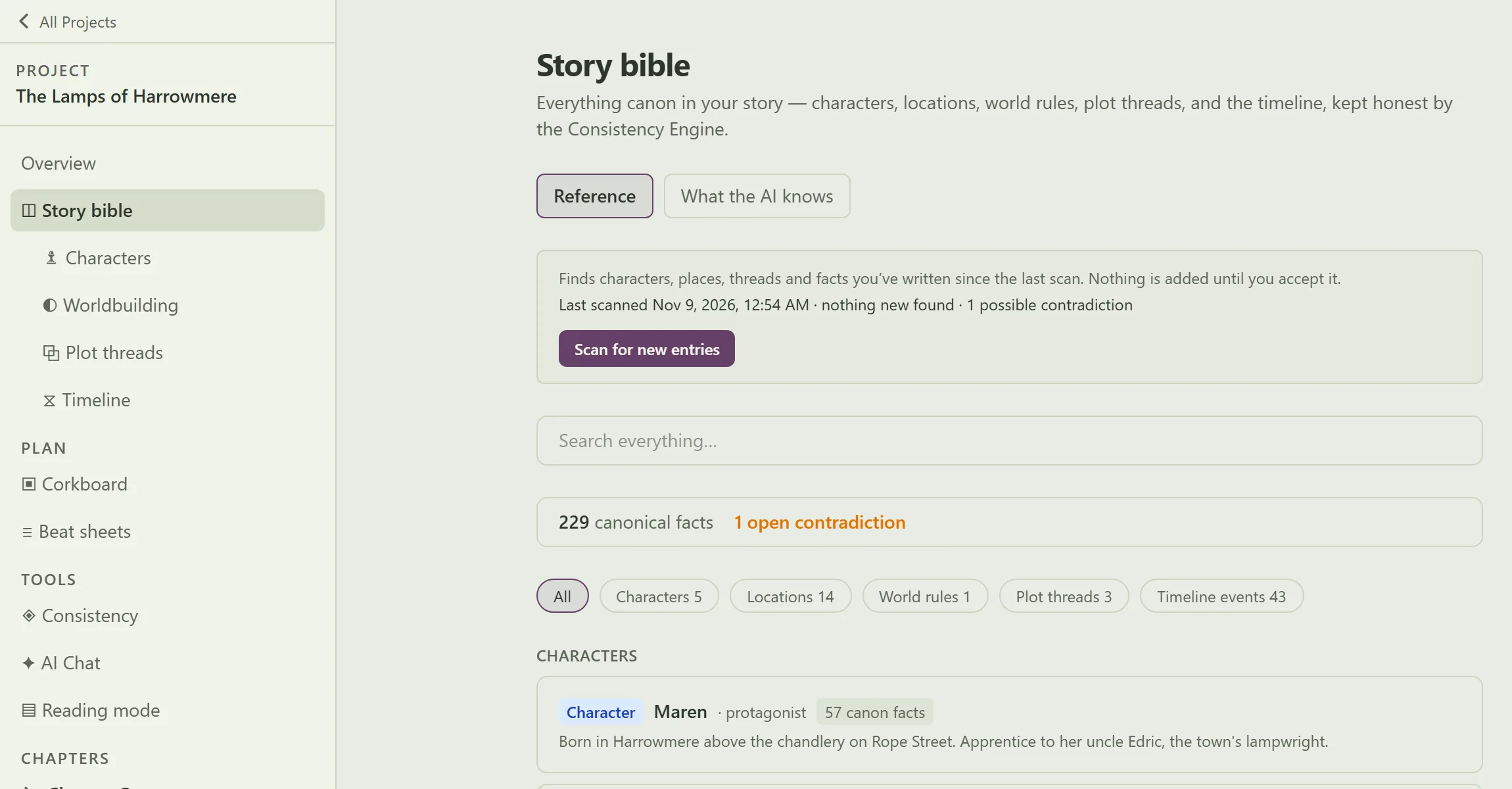
The page has two tabs:
- Reference: browse and search your entries, and review suggested ones.
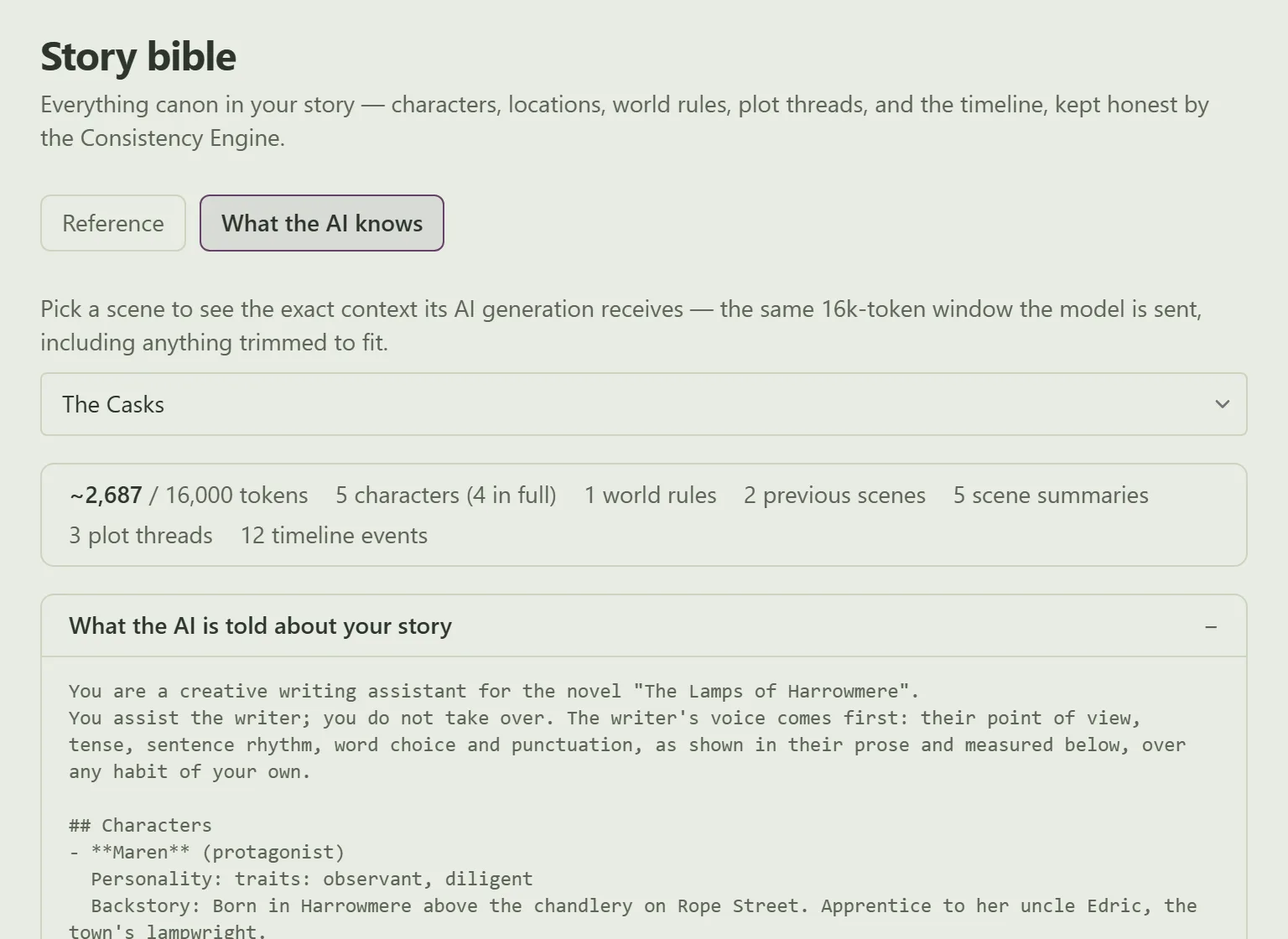
- What the AI knows: pick a scene to see exactly what the AI is sent when you generate in it. See How does the AI use my Story Bible?
How do I add characters?
- Open Characters in the sidebar and click + Add character.
- Type the character's name. It's the only required field; you can also pick a role (Protagonist, Antagonist, Supporting or Minor) and add a backstory.
- Click Save.
Click a character to open their page, which has three tabs:
- Profile: click Edit profile to change their name, role, backstory and arc notes. Under Also known as, list the other names the book uses for them, separated by commas (for example, "the Count, Mr. Harker"). The AI recognizes the character by these names too.
- Knowledge timeline: what this character knows, and when they learned it. Click + Add knowledge, write what they know, and set Learned in to the scene where they find out. The whole-book check uses this to catch them acting on it earlier.
- Relationship states: connect them to another character as an ally, rival, romantic partner, family or a custom relationship, and record how the relationship changes over the book.
Same person entered twice? When two entries look like the same character, the Characters page shows them under Possible duplicates. Click Merge into… to keep one: the other name becomes an alias, and its scenes, relationships, knowledge and timeline links move over. Click Not the same to dismiss the pair. To merge two entries NovelCanon didn't pair, use Same person entered twice? on a character's Profile tab.
How do I add places and world rules?
Open Worldbuilding in the sidebar. It has two tabs, Locations and World rules.
To add a location:
- On the Locations tab, click + Add location.
- Type its name and, if you like, a description.
- Click Save.
A location can sit inside another (a tavern inside a city), so you can build a hierarchy of places.
To add a world rule:
- On the World rules tab, click + Add rule.
- Give it a title and a category (such as magic system, technology or society).
- Write the description, which is required. Write it as the rule itself, for example "Magic can't cross running water".
- Click Save.
World rules are always included in what the AI is told about your story.
How do I track plot threads?
A plot thread follows one storyline from setup to payoff: a mystery, a promise, a rivalry.
- Open Plot threads in the sidebar and click + New.
- Type a title and, if you like, a description, then click Create.
- Click the thread in the list to open it.
- Under Beat timeline, click + Add beat.
- Describe what happens, choose the beat type (setup, development, complication, climax, resolution or reference) and pick the scene it happens in.
- Click Add beat.
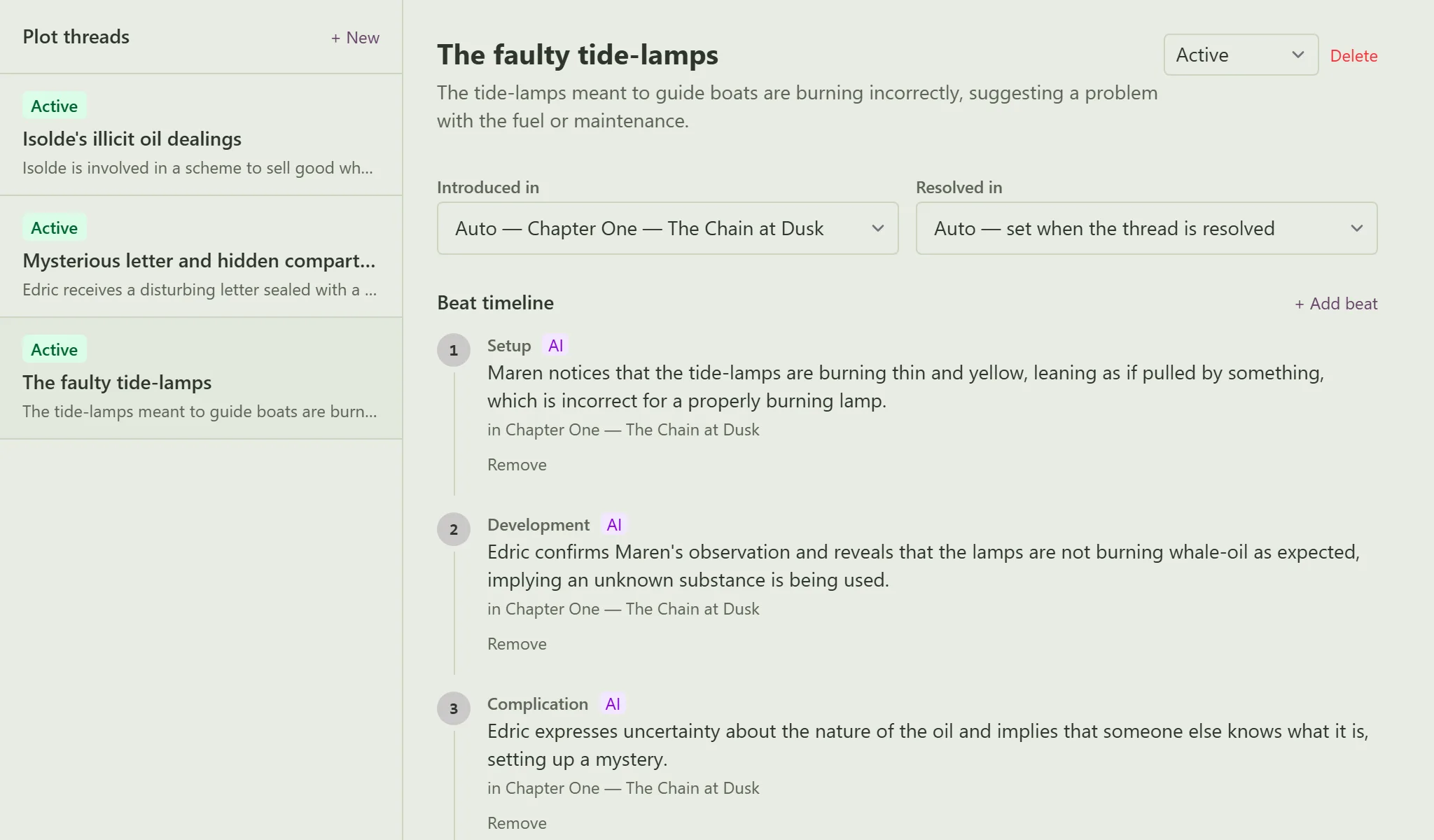
Beats tied to scenes are what place the thread in your book:
- Introduced in and Resolved in fill in automatically ("Auto") from the thread's beats: it starts at its earliest beat, and once you mark it resolved, it ends at its resolution beat (or its last beat). Pick a scene in either field to set it yourself.
- Status is one of Setup, Active, Resolved or Abandoned. Setup and active threads are open: the AI is told about them, with their latest beats up to the scene you're writing.
How do I use the timeline?
- Open Timeline in the sidebar and click + Add event.
- Give the event a title and, if you like, a date in your story's own terms ("5 May 1893", "Year 3 Day 42", "Twenty years earlier"), a description, and a scene.
- Click Save event.
Events are listed in story order; drag one to reorder it. Linking an event to a scene matters for the AI: when you generate in a scene, it is told only about events up to that scene, so it won't write ahead of your story. An event with no scene is treated as backstory and is always included.
The Timeline is a reference for you and the AI. The Consistency Engine doesn't check your scenes against its dates.
How does the AI use my Story Bible?
When you use the AI panel in a scene, NovelCanon sends the AI a selection from your Story Bible along with the scene:
- Characters: a full profile (aliases, appearance, personality, backstory, arc notes) for the scene's POV character and for every character named in the scene or the prose before it. Everyone else is sent as a name and role. Set the POV character under ⚙ Settings above the scene.
- World rules: all of them.
- The story so far: a summary of each earlier scene. Your own summary is used where you've written one (⚙ Settings → Summary); otherwise NovelCanon's.
- Open plot threads, with their latest beats up to this scene.
- Timeline events up to this scene, plus events with no scene.
- Your project description, as background that the story itself overrides.
AI Chat works from the same entries, but for the whole book: the main characters in full, every scene summary, every open thread and the whole timeline.
Locations aren't sent as entries, and neither are the facts on the Consistency page: those are what NovelCanon checks the writing against, so they don't steer it. If something matters to the AI, put it in a character profile or a world rule.
On a long book not everything fits, so the oldest summaries and events are dropped first and the scene you're writing is always kept. To see exactly what a scene sends, open Story bible → What the AI knows and pick the scene. Anything dropped is listed under Left out to fit the budget.
How does the Consistency Engine use it?
- As you type (all plans): your characters' names are what the editor checks name spellings against.
- Check for contradictions (Pro): the whole-book check flags an open plot thread whose last beat comes before the final scene, a fact that breaks one of your world rules, a character acting on knowledge before the scene where they learned it, and relationship states that contradict each other.
A thread you left open on purpose won't be flagged once its status is Resolved or Abandoned. For how issues appear and how to fix them, see Find and fix contradictions.
Where do suggested entries come from?
You don't have to type every entry yourself. NovelCanon suggests characters and places your scenes name, drafts the whole Story Bible when you import a book (Manuscript and Pro), and finds new entries when you click Scan for new entries on the Story bible page (Manuscript and Pro). Nothing is added until you accept it. See Where do Story Bible suggestions come from?
Troubleshooting
Why doesn't the AI know about my character?
The AI gets a character's full profile only when they're the scene's POV character or are named in the scene or the prose before it. If the scene calls them something else ("the captain"), add that name under Also known as on their profile. Then check Story bible → What the AI knows for the scene: the character's profile should appear there.
Why does a plot thread run to the end of the book?
A thread's start and end come from the scenes its beats are linked to. If a beat is linked to a late scene, the thread reaches that scene. Open the thread, check which scenes its beats are linked to, and remove or relink the stray beat, or set Resolved in yourself.
Why didn't a suggestion I rejected come back?
Rejecting a suggested name is permanent, so it isn't suggested again by later scenes or scans. To add it after all, create the entry yourself on the Characters or Worldbuilding page.
Still stuck? Contact us and a person will reply within one to two business days.